HOW TO USE THE MYINVOIS PORTAL FOR E-INVOICE SUBMISSION IN MALAYSIA
In order to support the digital economy as well as improve Malaysia’s tax administration, the Inland Revenue Board of Malaysia (LHDN) has introduced the usage of e-Invoicing, and non-compliance can lead to penalties, cash flow issues, and reputational damage to businesses. Therefore, it is crucial to understand how to use the MyInvois portal as the platform for e-Invoice submission.
In this topic, we will walk you through how to navigate the MyInvois portal by providing step-by-step guidance to help registered users streamline their compliance process with confidence.
Pre-requisites Before You Submit an e-Invoice
It is important to ensure you have all the necessary information before submitting your invoice. This way, you can avoid further delays, validation errors and potential rejections from LHDN. These are some preliminary steps you can prepare beforehand:
- Supplier & Customer Details:
- Name
- Identification (NRIC, BRN, TIN, etc.)
- Address
- Notification Details (E-mail Address, Phone number)
- Invoice Details:
- Invoice Number
- Invoice Date
- Item Description
- Quantity
- Unit Price
- Item Tax Codes
- Total Amounts (Subtotal, Total Tax Amount, Grand Total)
How to Retrieve and Verify TIN
There are two main methods to retrieve and verify a taxpayer’s Tax Identification Number (TIN):
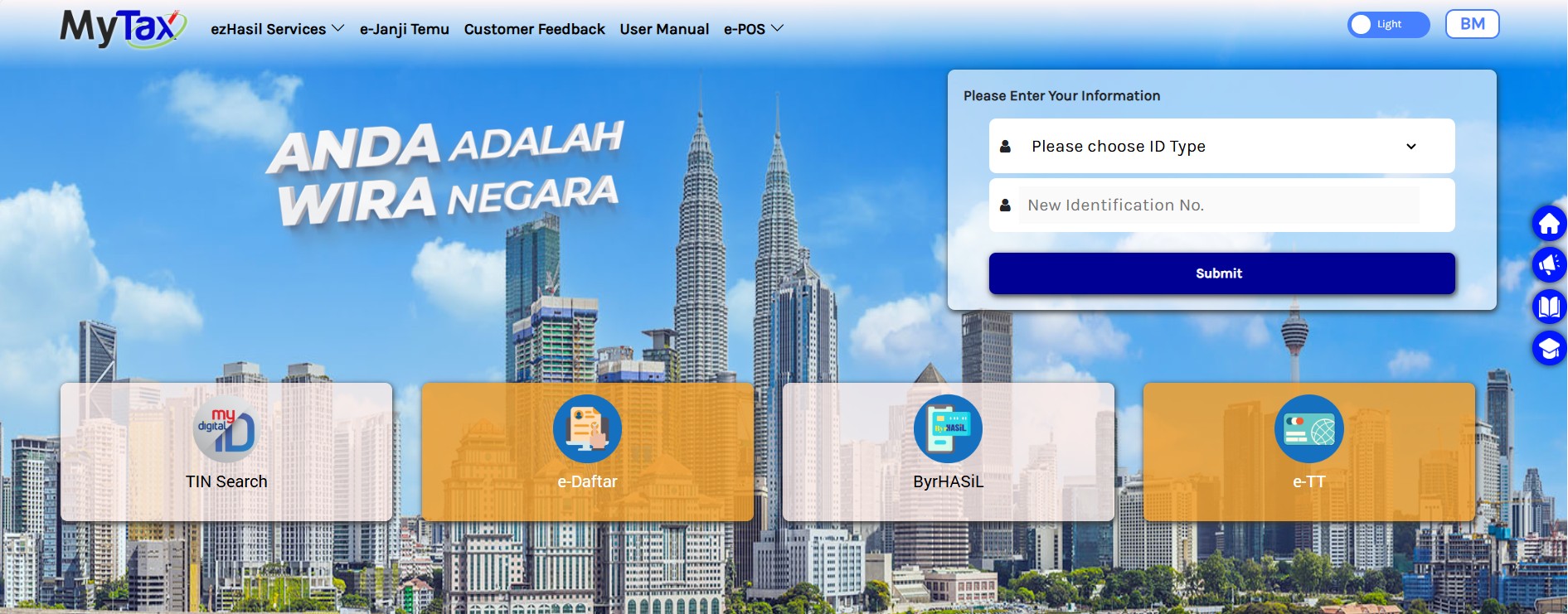
- Utilize the MyTax Portal, which provides a convenient way for businesses to check their TIN.
- If the TIN cannot be retrieved via the MyTax Portal, taxpayers can use the e-Daftar platform to register and obtain
their TIN by following these steps:
- Log in to MyTax Portal (https://mytax.hasil.gov.my).
- Select the e-Daftar option.
- Complete the required fields (e.g., taxpayer type, email address, and phone/mobile number).
- Click “Search” to register the taxpayer’s TIN.
Businesses need to evaluate and choose the most suitable method of e-Invoicing. Each approach has its own advantages and can significantly impact organisational efficiency, especially as operations grow more complex. With Quickin, you don’t have to worry about the process. Our system handles the submission on your behalf, ensuring accuracy, compliance, and peace of mind.
The two primary options available are:
- API Integration: This method automates the process by establishing a direct link between the accounting software and LHDN’s system.
- Manual Submission: This involves manually entering invoice details via the myInvois portal.
The selection should depend on your business’s operational requirements, technical capabilities, and future growth objectives. The following are the considerations when deciding on an e-Invoicing method:
- Transaction volume
- Resource availability
- Compliance and error management
- Future growth and business expansion
- Implementation timeline
Businesses prioritising efficiency, automation, scalability should opt for API integration, although the initial investment will be higher. Small businesses or startups on the other hand, may find manual submission more viable as a short term approach before fully committing to automation.
Logging into the MyInvois Portal
While it is easy and simple to access the MyInvois portal, it’s necessary to ensure that you log in securely to protect your business and tax data as well as to avoid data leakage.
- Log in to MyTax
- Go to the MyTax Portal: Visit mytax.hasil.gov.my.
- Log in using your NRIC and password.
- Access MyInvois Portal
- Once logged in, click on the “MyInvois Portal” link.
- Click on the Taxpayer TIN dropdown.
- Your company name should appear here if your role application has been approved.
- Select your company from the list.
- The Terms and Conditions page will appear.
- Read through the T&C and tick the accept box.
- Press “Continue”.
- Update Company Profile Information
- You will now see your Company Profile page.
- You can update your company information as needed.
- Click “Save” after making changes.
- Under Notification Email, we suggest using a dedicated email for e-Invoice purposes.
- Click “Save” after entering the email.
- A “Registration Completed” message should appear.
- Verify Your Company Access
- Click on the top-right corner arrow.
- Your company name should be listed here, confirming that you have successfully logged into MyInvois.
Tips for Secure Access
- Enable strong passwords: Use a combination of uppercase, lowercase, numbers, and symbols.
- Avoid public networks: Always log in from a secure, private connection.
- Log out after each session: Prevent unauthorised access if using shared devices.
- Keep credentials private: Never share your login details
Submitting an e-Invoice: Step-by-Step
We’ve come to the main topic, which is how to submit an e-Invoice on Myinvois portal. Here’s a clear, practical walkthrough to guide you on your first submission:
- Initial Setup
- Begin by navigating to “New Document,” select “Invoice”
- Click “Start” to begin the e-Invoice creation process.
- Supplier & Customer Details
- Enter the buyer’s ID Type, appropriate ID value (NRIC, BRN, etc.), and TIN (Tax Identification Number), then click “Validate.”
- A “Tick” symbol will appear on the tab once this section is complete.
- Line Items
- Click “Add Line” to add new items. Fill in the details for each item.
- Under “Taxes,” click “Add Tax Type,” and choose the appropriate tax or “Not Applicable.”
- Click “Add” to save the item. Repeat this process for all additional items.
- Verify that the total amount is correct.
- Review and Submission
- Review all the information in the “Summary and Submit” section to ensure accuracy.
- Click “Sign & Submit Document” to finalise.
- For security, log in again by re-entering your ID and password, and then tick “Agree to Signed on behalf of the Company.”
- A “Document Submitted!” popup will appear with a UUID (Universally Unique Identifier).
- Click “Finished” to complete the process.
Handling Rejections and Errors
Even after careful preparation, your e-Invoice submissions might sometimes be rejected. Resolving them promptly by understanding the reasons behind the rejection is key to maintaining compliance. Soon, it will become a straightforward process for you and your business.
Common rejection reasons include:
- Structural non-compliance
- Duplicate Invoice
- Missing Mandatory Fields
How to Fix and Resubmit Quickly
There are two ways to correct and resubmit an invoice:
- MyInvois Portal: Amend the invoice and send it again through the portal.
- API Model: Refer to LHDN guidelines for your system to resubmit the corrected invoice.
With automation tools like Quickin, this process becomes much simpler, as it quickly identifies and fixes common submission errors before sending them to MyInvois portal for submission. This results in faster processing and fewer rejected submissions.
Monitoring, Downloading & Archiving e-Invoices
It is imperative that you manage your invoice records effectively once they have been validated, not only to ensure compliance but also to prepare your business for future audits.
Monitoring Invoice Status
The MyInvois portal allows businesses to:
- Monitor real-time updates on submissions.
- View invoices that have been rejected, are awaiting approval, or have been validated.
- Download reports to facilitate reconciliation
Downloading and Sending PDFs
E-Invoices, once validated, are available for download as PDFs to share with customers.
Archiving Your e-Invoices
In accordance with LHDN guidelines, businesses are required to keep e-Invoice records for a minimum of 7 years.
Integration with Accounting Systems
Quickin seamlessly integrates with various popular accounting platforms, automatically synchronising validated E-Invoices and thereby reducing the need for manual data entry or uploads.
Future-Proofing with Quickin
While the MyInvois portal might be suitable for smaller businesses with low invoice volumes, growing companies will benefit from e-Invoicing software like Quickin.
When to Consider Intermediary/API Submission
- Your volume of invoices has become too large for manual entry.
- You require faster, more accurate submissions.
- You need better integration with your ERP or accounting software.
Advantages of Automation at Scale
- Fewer Errors: Automatic validation helps prevent costly rejections.
- Quicker Processing: Submit numerous invoices in bulk with minimal effort.
- Enhanced Compliance: Stay current with evolving LHDN regulations.
- Increased Efficiency: Allows finance teams to focus on more valuable tasks.
We are gradually transitioning to a fully digital tax system with the expectation that all businesses will cooperate by providing accurate and timely e-Invoice submission, and this is where Quickin comes in. While the MyInvois portal acts as a cornerstone for compliance, automating the process with Quickin saves more time and lets you focus on expanding your business.
Let Quickin manage your submission process so you can have peace of mind in operating your business efficiently.